How to fix Dysfunctional USB Port or Not working USB Port
If your USB port stops working, it’s not necessary that it’s broken. Below are some solutions that can fix this issue:
Method 1: Restart the PC
Restarting the PC is the answer to many problems, and it is a common solution to USB port problem as well.
Method 2: Uninstall USB port driver
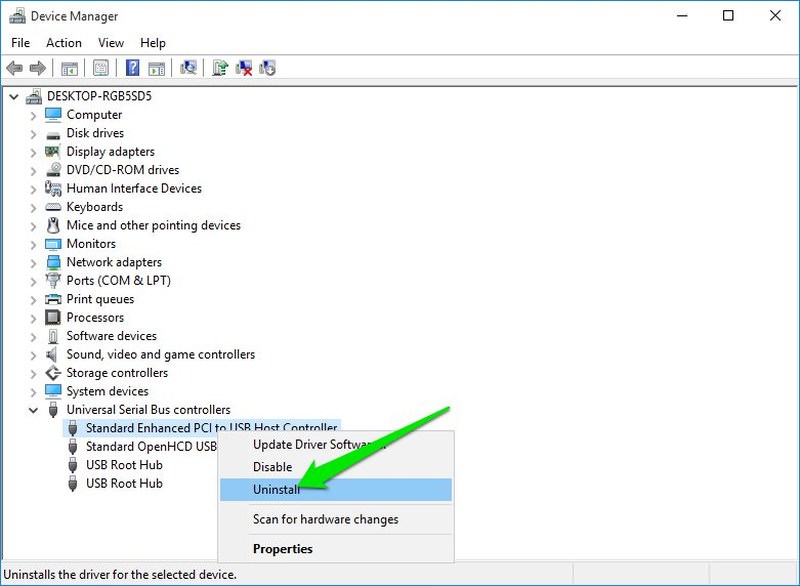
Uninstalling the driver of the USB port will force Windows to reinstall it when you will restart the PC. This may fix the problem. Here is how to do it:
- Press Windows + R keys and enter
devmgmt.mscin the Run dialog to open the Device Manager. - Here, expand Universal Serial Bus controllers option.
- Now right-click the entry USB Host Controller and then click on Uninstall.
- Repeat this for all entries with USB Host Controller to uninstall drivers for all the USB ports.
- Once deleted, restart the PC and Windows will automatically reinstall the drivers and fix any driver issues.
Method 3: Disable USB selective suspend
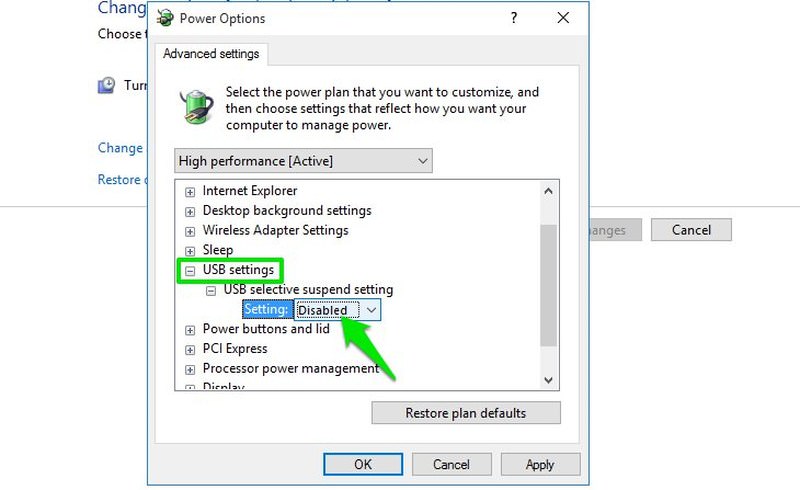
USB Selective Suspend is a Windows power saving feature that suspends unused or idle USB ports to conserve power. Sometimes it could stop a USB port from working. Here is how to disable it:
- Press Windows + R keys and type
powercfg.cplin the Run dialog to open Windows Power options. - Here click on Change plan settings next to your current plan and then click on Change advanced power settings.
- Now, expand USB settings and disable USB selective suspend setting.
- Restart the PC to see if it fixes the USB port issue.
Note: This option should be kept enabled if you want to save battery power. If it doesn’t fix the USB port issue, then enable it again.


Comments
Post a Comment