PC not using a portion of RAM Issue Fix
Sometimes your PC may not use a portion of RAM. For example, You may have 4GB of RAM, but your PC only uses 2GB when you check it from the Task Manager. This is usually a Windows setting issue.
Note: If only a few MBs (200-400MB) of RAM isn’t being utilized, then it’s probably being used by PC hardware and you can’t do anything about it.
The solution to this problem is simple – Windows must have been configured to only use a portion of the RAM. Here is how to fix it:
- Press Windows + R keys and type
msconfigin the Run dialog to open System Configurations. - Move to Boot tab and click on Advanced options.
- Now check the checkbox next to Maximum memory and enter the maximum amount RAM you have installed (in MBs).
- Click on OK and restart the PC to let it take effect.
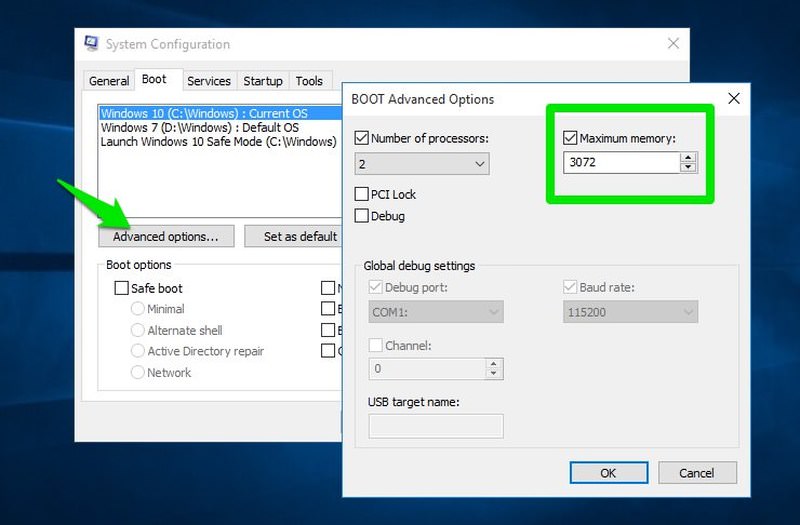
Good to know: While you are at it, you should also check the checkbox next to Number of processors option and ensure your PC is utilizing all the CPU cores as well. Set it to the maximum number if you want to use all of the CPU power.
If this didn’t fix the problem, then there is also a chance one of the RAM isn’t installed properly. Try reinstalling it.


Comments
Post a Comment